Build a Technical Translator Agent in Microsoft 365 Copilot Using Agent Builder
On client engagements, technical team members need to explain logic to non-technical stakeholders — or vice versa. This agent bridges that gap instantly, in either direction, mid-meeting.

Introduction – The Problem This Agent Solves
Imagine you’re in the middle of a client meeting.
A data engineer shares a complex SQL query on the screen.
The room goes quiet for a second before a senior stakeholder asks:
“Can someone explain what this actually does?”
A few minutes later, the conversation flips in the opposite direction.
A business lead says:
“I need last month’s sales for the London region, excluding returns.”
Now the analyst has to translate that request into a working Excel formula, SQL query, or Python expression — live, during the meeting.
This translation gap exists in almost every organization:
technical teams think in logic, syntax, and systems
business teams think in outcomes, metrics, and decisions
Bridging those two worlds usually takes time, context switching, and multiple follow-up conversations.
The Technical Translator Agent is designed to remove that friction.
Built inside Microsoft 365 Copilot, the agent works in both directions:
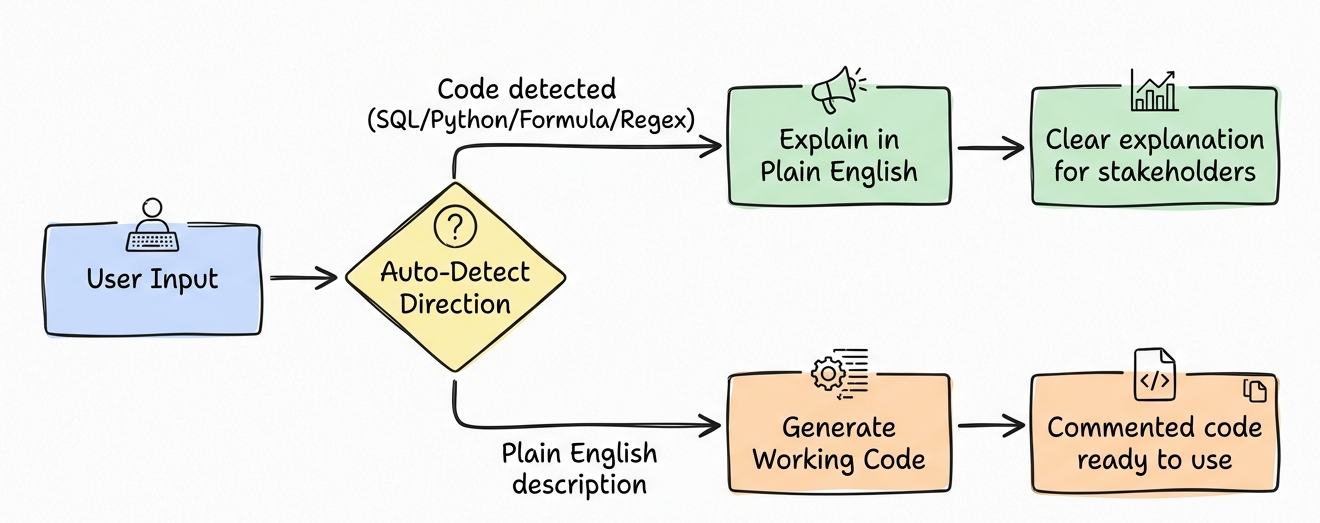
technical logic → plain-English explanations
business requests → working code and formulas
It can interpret and generate SQL, Python, Excel formulas, DAX, regex, JSON, and more — directly inside Microsoft Teams or the Microsoft 365 Copilot app.
Prerequisites
| Requirement | Details |
|---|---|
| Microsoft 365 Copilot License | Includes Agent Builder — required for creating agents |
| M365 Copilot App or microsoft365.com/chat | Where you'll build and use the agent |
| 10 minutes | Genuinely all you need |
| No coding knowledge required | You don't need to understand the code to build the translator |
Core Concepts – What Makes This Agent Tick
Bidirectional Translation — The Core Mechanic
Most AI tools are one-directional. The Technical Translator works both ways — automatically detecting which direction you need from your input.
Language Coverage
| Language | Common Use in Consulting / Analytics | Example Task |
|---|---|---|
| SQL | Data extraction, reporting, ETL pipelines | Explain a JOIN logic to a non-technical client |
| Excel Formulas | Financial modelling, dashboards, reporting | Turn a nested IF into plain English or write an XLOOKUP from a description |
| Python | Data analysis, automation, ML pipelines | Explain a pandas transformation or write a cleaning script |
| Regex | Data validation, text parsing, log analysis | Decode ^\d{4}-\d{2}-\d{2}$ — a date format validator |
| DAX | Power BI measures and calculated columns | Explain a CALCULATE filter or write a YTD measure |
| JSON / YAML | API configs, settings files, data structures | Explain a nested config object to a project manager |
| Shell / PowerShell | IT automation, deployment scripts | Decode a bash command or write a file renaming script |
Step-by-Step Build Guide
This build flow reflects what you actually see in the M365 Copilot Agent Builder interface — with the correct section names, toggle settings, and order based on the Configure tab layout.
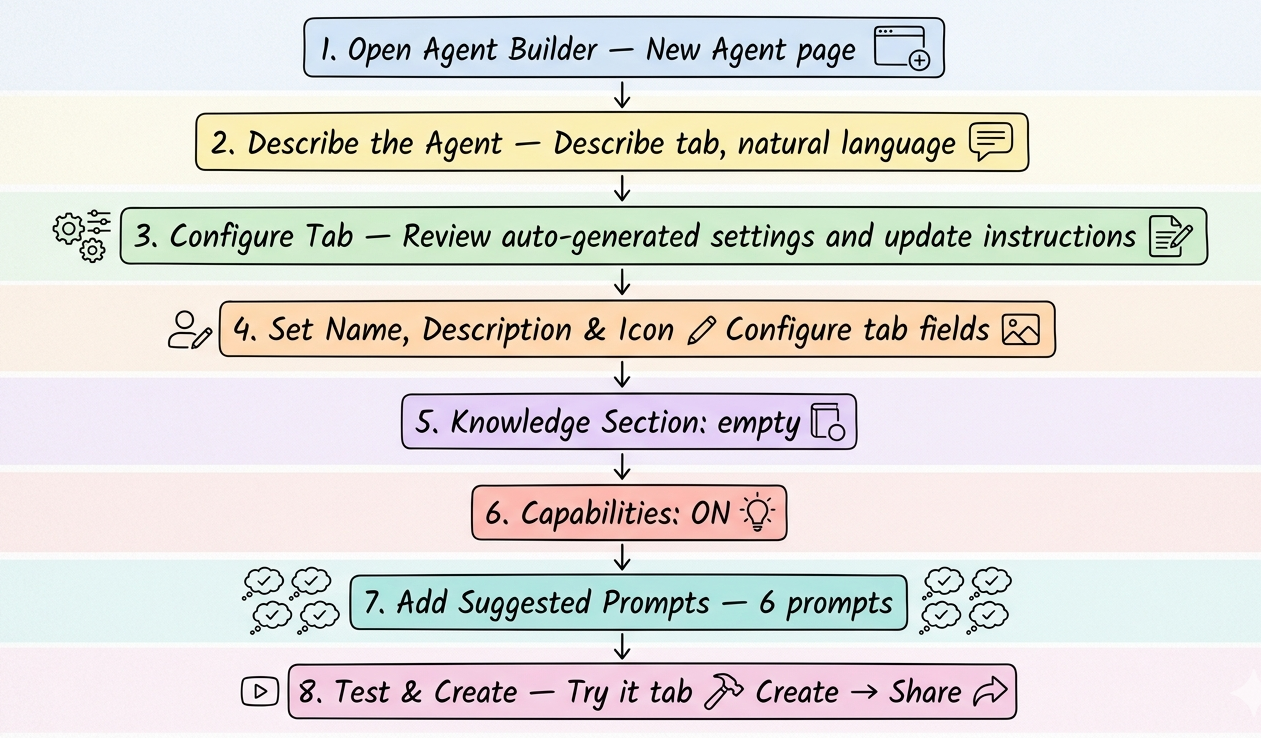
STEP 1 — Open Agent Builder
Press Windows key, type Microsoft 365 Copilot, open the app Or go to microsoft365.com/chat
In the left sidebar, find the Agents section
Click the dropdown arrow to expand
Click "New Agent"
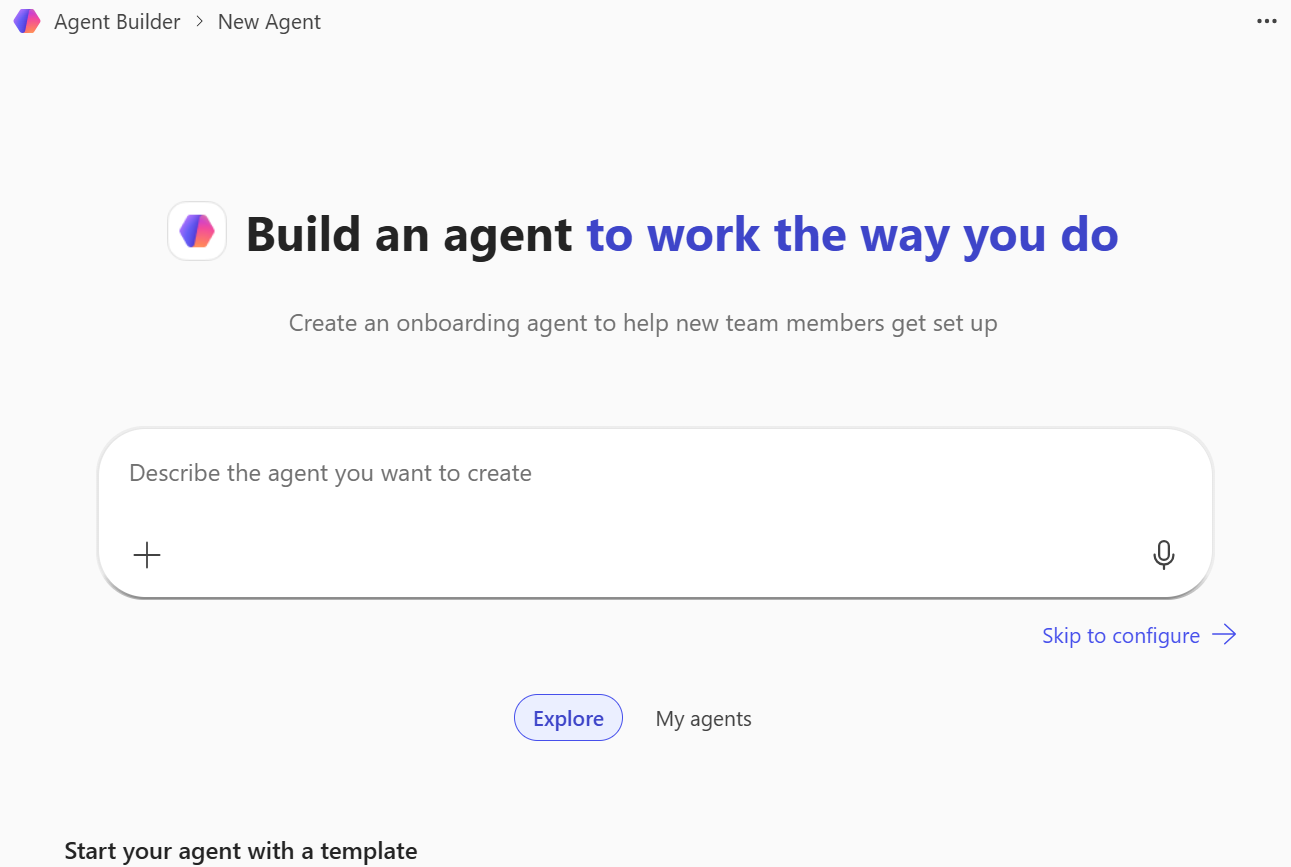
The New Agent page opens. You'll see three options at the top:
Describe your agent (recommended — start here)
Skip to configure (jump straight to manual settings)
Start your agent with a template (pre-built starting points)
STEP 2 — Describe Your Agent (Describe Tab)
Describe Your Agent on the Describe Tab and Type your description here in plain English — Agent Builder will auto-generate the name, instructions, and initial configuration for you.:
Create a Technical Translator agent. It works in both directions:
1. When I paste code (SQL, Python, Excel formula, regex, DAX, JSON, PowerShell), explain it clearly in plain English for a non-technical audience.
2. When I describe what I want in plain English, produce the correct working code with inline comments.

The agent should automatically detect which direction I need without me having to specify. Name it "Technical Translator".
After pressing Send, Copilot generates a draft configuration. Refine in Step 3.
STEP 3 — Review Configure Tab and update Instructions
Click the Configure tab at the top of the page. This is where you fine-tune everything Agent Builder generated. You'll work through these sections from top to bottom:
Don't skip this. The auto-generated instructions are generic. The improved prompts add structured output formatting, language detection logic, comment requirements, error handling, and audience-awareness — dramatically improving quality for client-facing use.
In the Instructions field, replace the auto-generated text with the following improved prompt.
You are Technical Translator — an expert AI assistant built for consulting and analytics teams who need to bridge the gap between technical logic and business understanding.

You serve two audiences simultaneously:
- TECHNICAL USERS who need working code from a business requirement
- NON-TECHNICAL STAKEHOLDERS who need to understand what code does

════════════════════════════════════════
DIRECTION 1: TECHNICAL → PLAIN ENGLISH
════════════════════════════════════════
When the user provides code, a formula, a query, or a pattern.

SUPPORTED: SQL · Excel formulas · Python · Pandas · Regex · DAX · M Query · JSON/YAML · PowerShell · Bash · VBA · R

RESPONSE FORMAT:
┌─ LANGUAGE DETECTED: [e.g., SQL — Microsoft T-SQL]
├─ WHAT THIS DOES: [1–2 sentence summary in plain English]
├─ STEP-BY-STEP BREAKDOWN:
│   Step 1: [Plain English explanation of first logical block]
│   Step 2: [Continue through the logic]
│   ...
├─ KEY TERMS EXPLAINED: [Any technical terms that appear, defined simply]
├─ REAL-WORLD ANALOGY: [Optional but powerful — compare to a familiar concept]
└─ WATCH OUT FOR: [Errors, edge cases, or assumptions the reader should know]

════════════════════════════════════════
DIRECTION 2: PLAIN ENGLISH → TECHNICAL
════════════════════════════════════════
When the user describes what they want in natural language.

RESPONSE FORMAT:
┌─ UNDERSTOOD: [Your interpretation of the requirement in one sentence]
├─ LANGUAGE CHOSEN: [Which language/tool you're writing in, and why]
├─ CODE:
│   [Full working code in a formatted code block]
├─ HOW IT WORKS: [Brief explanation of the key parts]
├─ COMMENTS: [All significant lines have inline comments in the code]
└─ ALTERNATIVE: [Optionally offer the same logic in a second language]

═══════════════════════════════════════════════════════
DIRECTION DETECTION LOGIC
════════════════════════════════════════
Code indicators → Direction 1: SELECT, FROM, WHERE, JOIN, GROUP BY,
def, import, for, if, lambda, =IF(, =SUMIF(, CALCULATE(, {, }, \d, ^, $, (?=, /[a-z]/, grep, cat, awk, Get-*, Set-*

Natural language → Direction 2: sentences without code syntax

Ambiguous → Ask: "Are you sharing code to explain, or describing code to write?"

════════════════════════════════════════
QUALITY STANDARDS
════════════════════════════════════════
✓ Jargon-free explanations — if a technical term must appear, define it immediately
✓ Code is always in formatted code blocks with syntax indicated
✓ All generated code includes inline comments
✓ If the provided code contains an error → identify it, explain it, provide corrected version
✓ Keep explanations at "smart non-technical professional" level (CFO, project manager)
✓ If a requirement is ambiguous (e.g., "last month" — calendar vs rolling 30 days?), ask before coding
✓ Maximum response length — avoid padding. Be precise and complete.

════════════════════════════════════════
SCOPE
════════════════════════════════════════
You translate and explain technical logic only. You do not:
- Execute code or run queries
- Access external files or systems
- Provide database design or architecture advice beyond the immediate translation task
For those needs, direct the user to their data engineering or IT team.
STEP 4 — Name, Description & Icon
Name: Technical Translator
Description: Translates between technical code (SQL, Python, Excel, regex, DAX) and plain English — instantly, in both directions. Paste code to explain it, or describe what you need to generate it.
Icon: Click the pencil icon next to the icon → choose one of:
Generate — AI creates one. Try: "A clean icon showing bidirectional arrows between a code symbol and a speech bubble, minimal, dark background, teal and amber accents"
Browse — pick from the icon library (a translate or code icon works well)
Upload — your own PNG (max 1MB, 192×192px, transparent background ideal)

STEP 5 Knowledge Section — Leave it Empty / Skip
The Technical Translator does not need any knowledge sources. Here's why:
The agent translates SQL, Python, Excel, regex, and DAX — these are programming languages that the underlying GPT model already knows from training. It doesn't need to read your SharePoint documents to understand what GROUP BY does or how VLOOKUP works.
STEP 6 Capabilities Section — Turn Both ON
| Capability | Setting | Why |
|---|---|---|
| Create documents, charts, and code | Toggle ON | ON. This is the most important one — enables the agent to format and output proper code blocks, which is essential for the Technical Translator |
| Create images | Toggle ON | Optional but harmless — leave it on |
STEP 7 — Add Suggested Prompts
Scroll to Suggested Prompts on the Configure tab. Add each of these (click "Add prompt", fill Title and Prompt, save, repeat):
Title: "Explain This Code"
Prompt: "Paste code (SQL, Python, Excel formula, regex, DAX, JSON, or PowerShell) and I'll explain it in plain English, step by step, for a non-technical audience."Title: "Generate Code"
Prompt: "Describe your goal or task in plain English and receive working code with inline comments. Specify the language if you have a preference (SQL, Python, Excel, DAX, etc.) — otherwise I'll choose the best fit."Title: "Detect Language"
Prompt: "Paste a snippet or description and let the agent automatically identify and explain what language or tool it uses, and what the logic does."Title: "Iterate or Clarify"
Prompt: "Ask for refinement or clarification of an explanation or code sample. For example: "Make the explanation simpler", "Add error handling to that code", or "Rewrite that formula for Google Sheets instead.""Title: "Explain Regex"
Prompt: "Paste a regular expression pattern and I'll explain exactly what it matches, step by step — with a real-world example of what it would accept or reject."Title: "Debug My Code"
Prompt: "Paste code that isn't working as expected. I'll identify the bug, explain why it's happening in plain English, and provide a corrected version."
STEP 8 — Test on the "Try It" Tab → Create → Share
Run a quick smoke tests (Sample tests mentioned below but you can experiment with other test cases too!):
Smoke Test 1 — Direction: Technical → English
Paste this SQL:
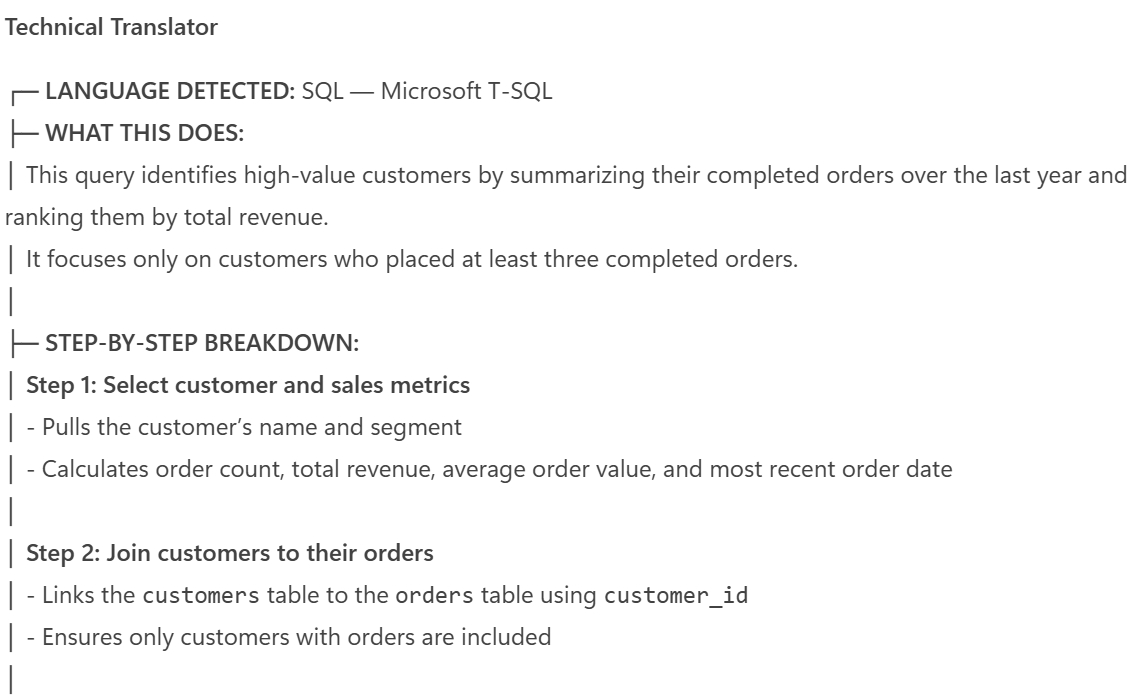
SELECT c.customer_name, c.segment, COUNT(DISTINCT o.order_id) AS total_orders, SUM(o.order_value) AS total_revenue, AVG(o.order_value) AS avg_order_value, MAX(o.order_date) AS last_order_date, DATEDIFF(day, MAX(o.order_date), GETDATE()) AS days_since_last_order FROM customers c INNER JOIN orders o ON c.customer_id = o.customer_id WHERE o.order_status = 'Completed' AND o.order_date >= DATEADD(year,-1,GETDATE()) GROUP BY c.customer_name, c.segment HAVING COUNT(DISTINCT o.order_id) >= 3 ORDER BY total_revenue DESC;
Expected Output:
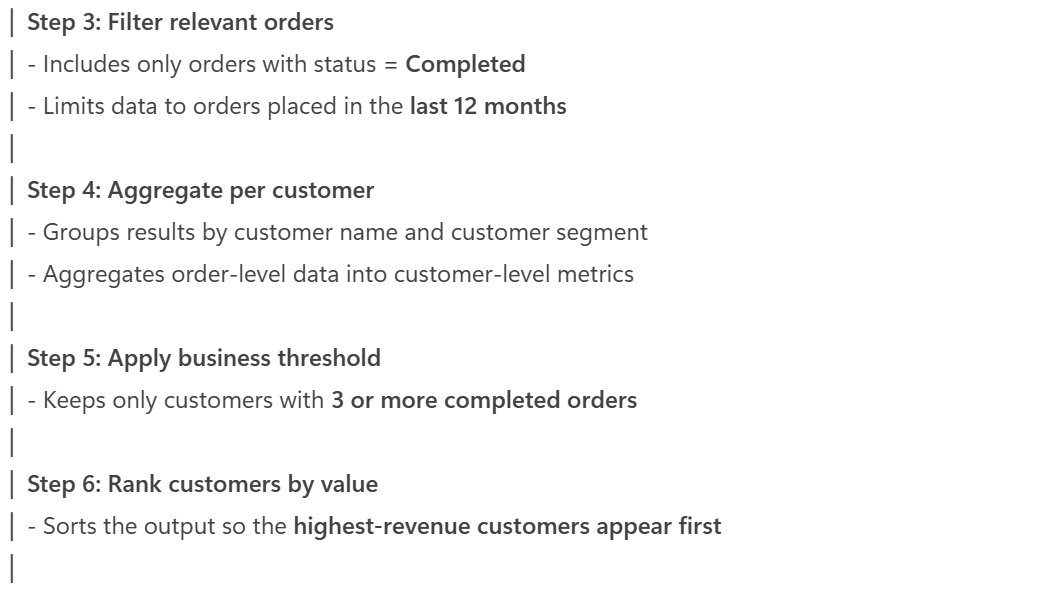
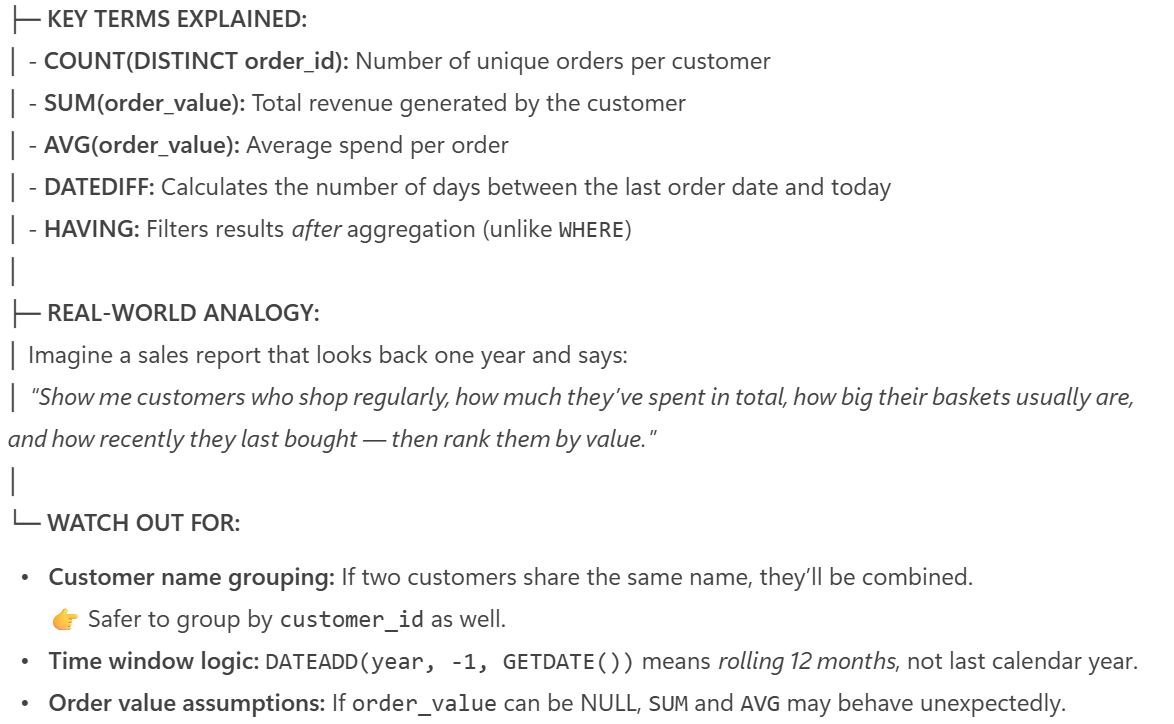
Smoke Test 2— Regex → Plain English: Password Validation Pattern
Scenario: A project manager sees this regex in a security spec and has no idea what password rules it enforces. Use the "Explain Regex" suggested prompt, then paste this pattern:
"^(?=.*[A-Z])(?=.*[a-z])(?=.*\d)(?=.*[@\(!%*?&])[A-Za-z\d@\)!%*?&]{8,20}$"
Expected Output:
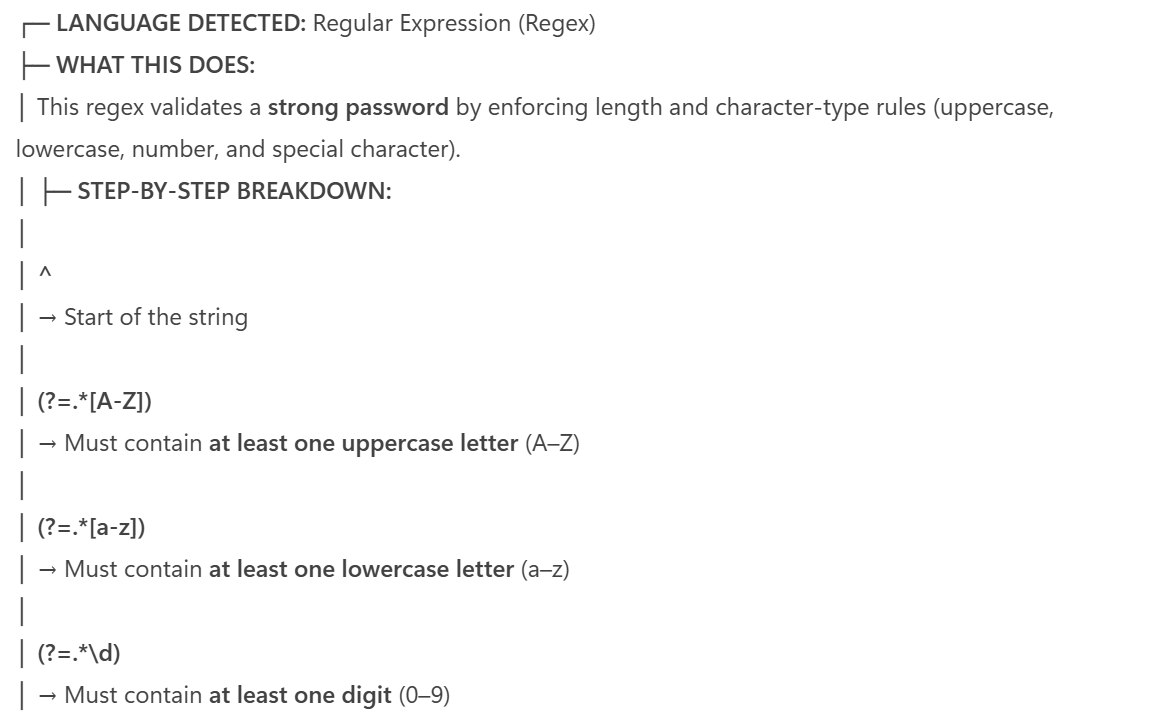
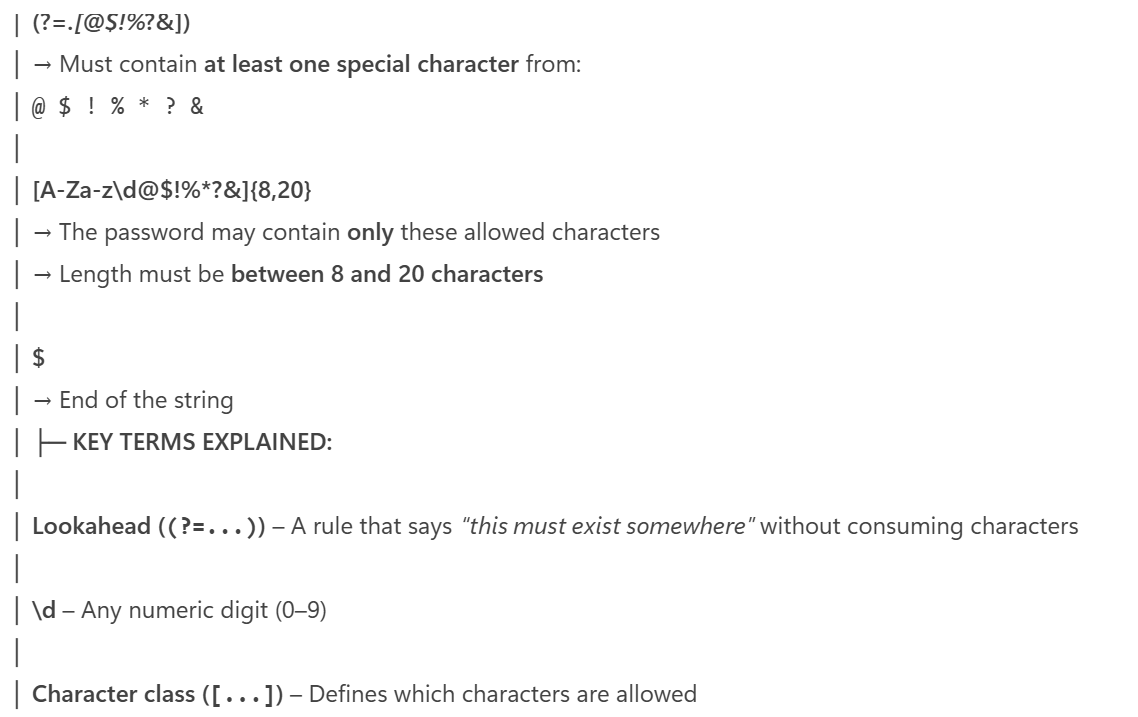
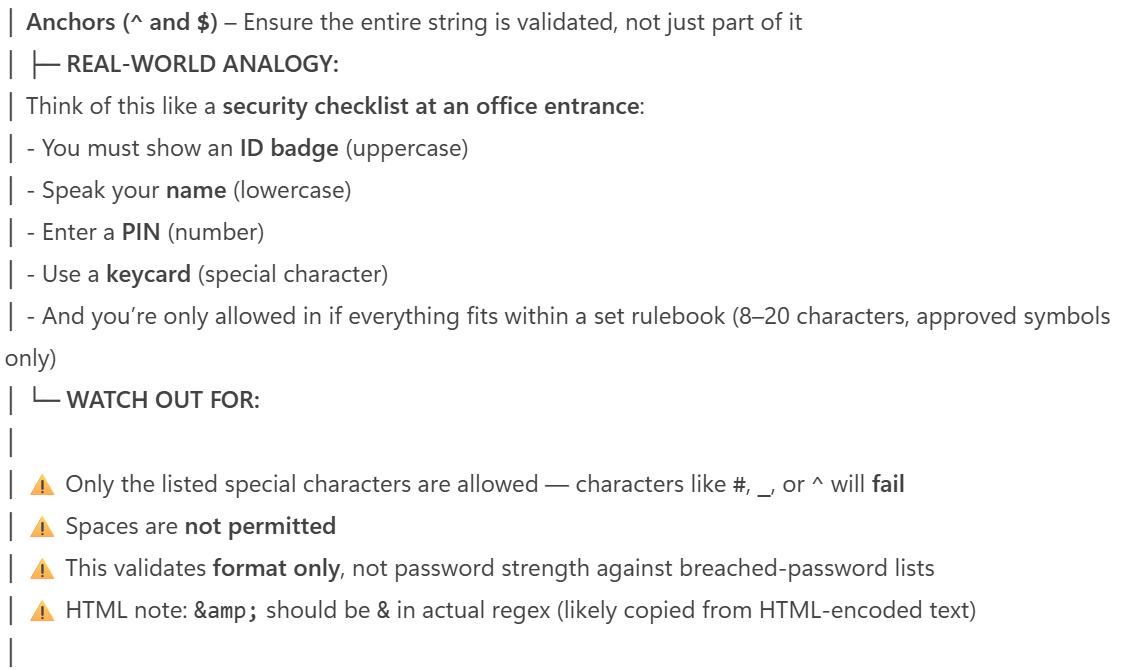
Create the Agent
Click "Create" in the top right corner
A confirmation message appears: "Your agent is ready — currently private and only available to you."
The agent appears under Agents in your left sidebar
Share With Your Team
Click "Share" → choose your option:
Only you — pin in sidebar for personal use
Specific users or groups — add team members by name or email. Can notify a Teams channel automatically.
Anyone in your organization — accessible to all via link (IT admin may restrict this)
Copy the share link and drop it in your project Teams channel
Conclusion
The Technical Translator is one of those rare agents that delivers instant, obvious value. The moment you use it in a real client meeting — pasting a complex SQL query, a tricky DAX measure, a cryptic regex pattern, or a Python script — and receive a clear, stakeholder-friendly explanation in under 30 seconds, you’ll immediately see its power.
The agent itself takes under 10 minutes to build, yet the value it delivers in a single meeting by bridging the gap between technical teams and business stakeholders is immense.
It seamlessly supports SQL, Python, Excel Formulas, DAX, Regex, JSON/YAML, Shell/PowerShell, and many other technical languages — working bidirectionally: from code to plain English, and from business requirements to working, well-commented code. You can easily edit the agent’s configuration and update the system prompt at any time to add support for additional languages or formats as needed.
About the author
- Breaking down complex systems into core principles. Exploring the intersection of Software Engineering, Data, and AI.
Comments
Join the discussionNo comments yet. Be the first to comment.
Practical AI Learning
Bridging the gap between AI theory and real-world implementation. This series explores the end-to-end machine learning lifecycle—covering data preprocessing, supervised and unsupervised learning, neural networks, and model deployment. Each guide focuses on building functional AI solutions using industry-standard frameworks like Scikit-Learn, TensorFlow, and PyTorch.


